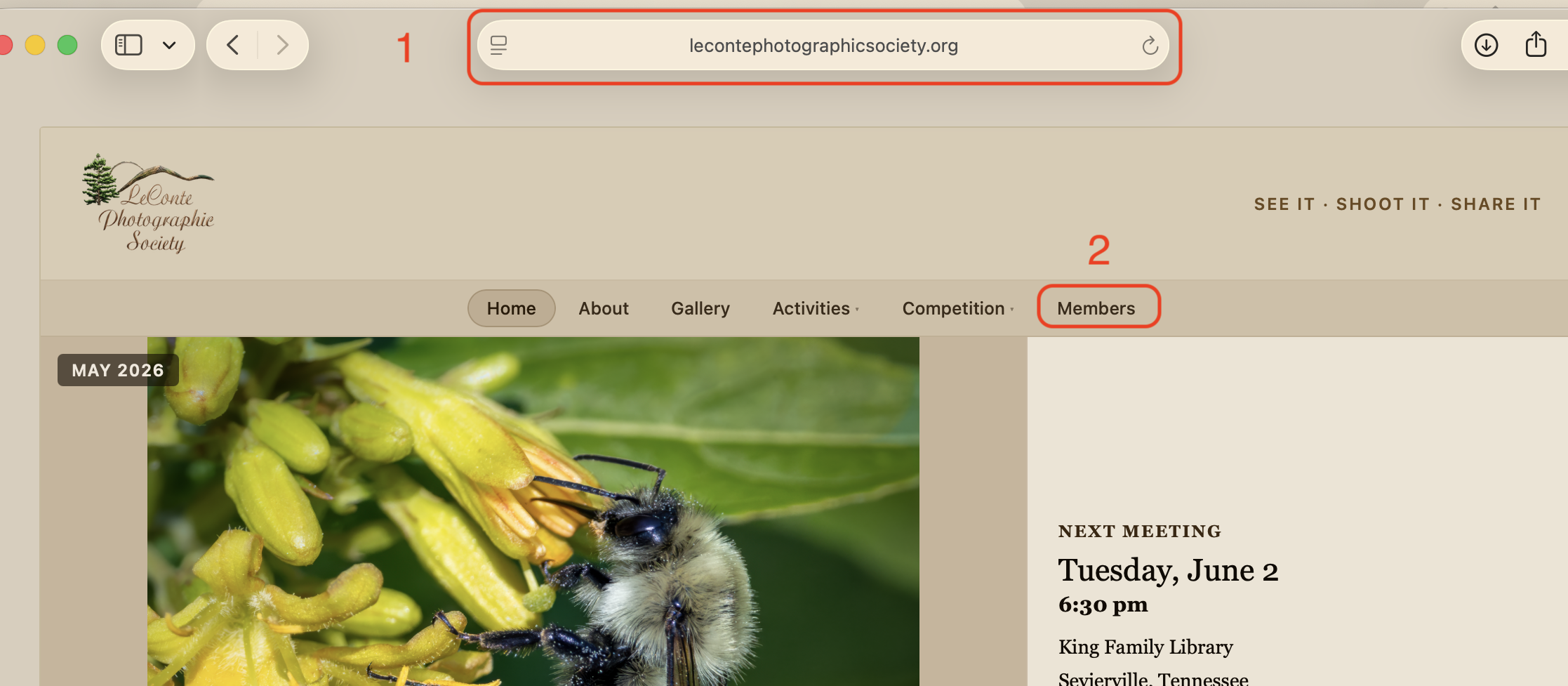
Go to the website
Click Members on the navigation bar
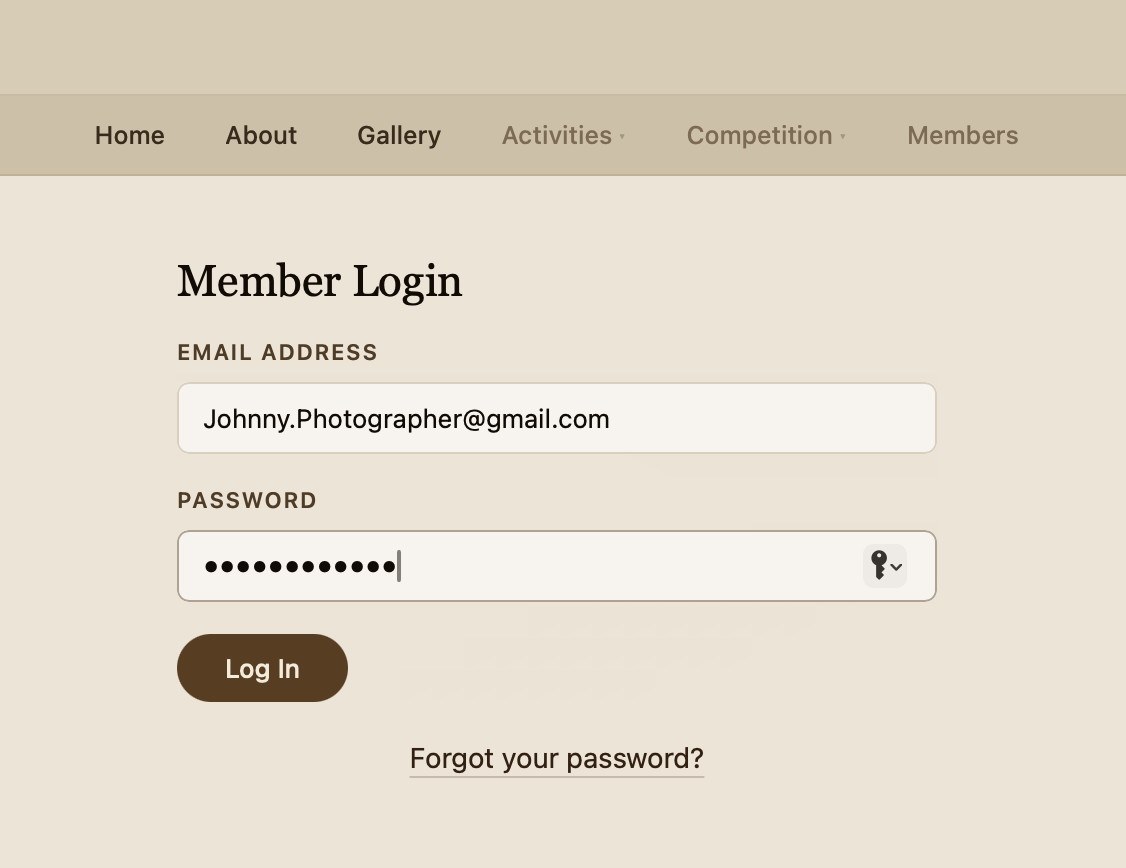
Enter your info and click the Log In button
The page is separated into several cards
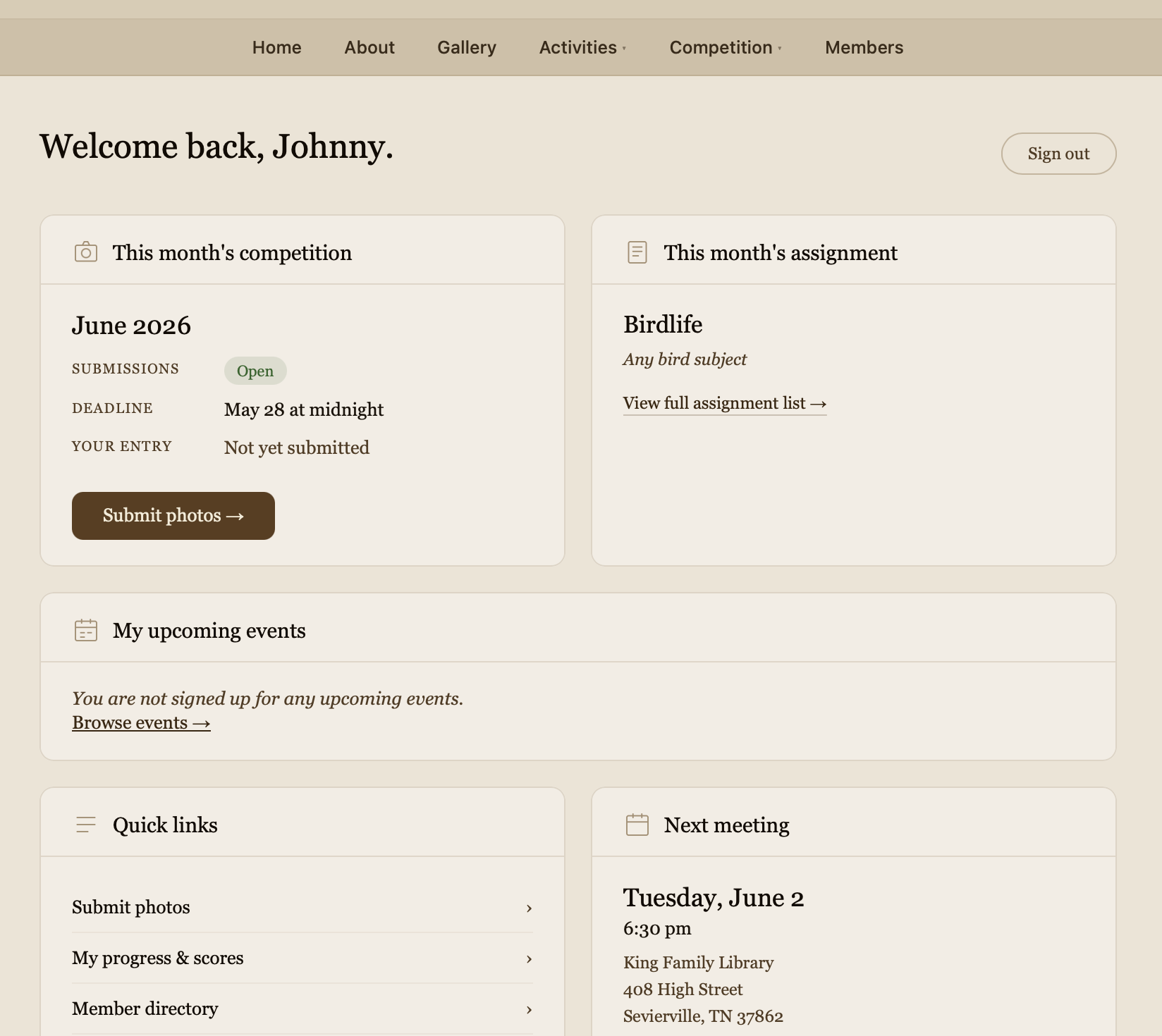
The first card is the competition card
The card shows if submissions are Open or Closed for the current competition
Submissions automatically close on the deadline
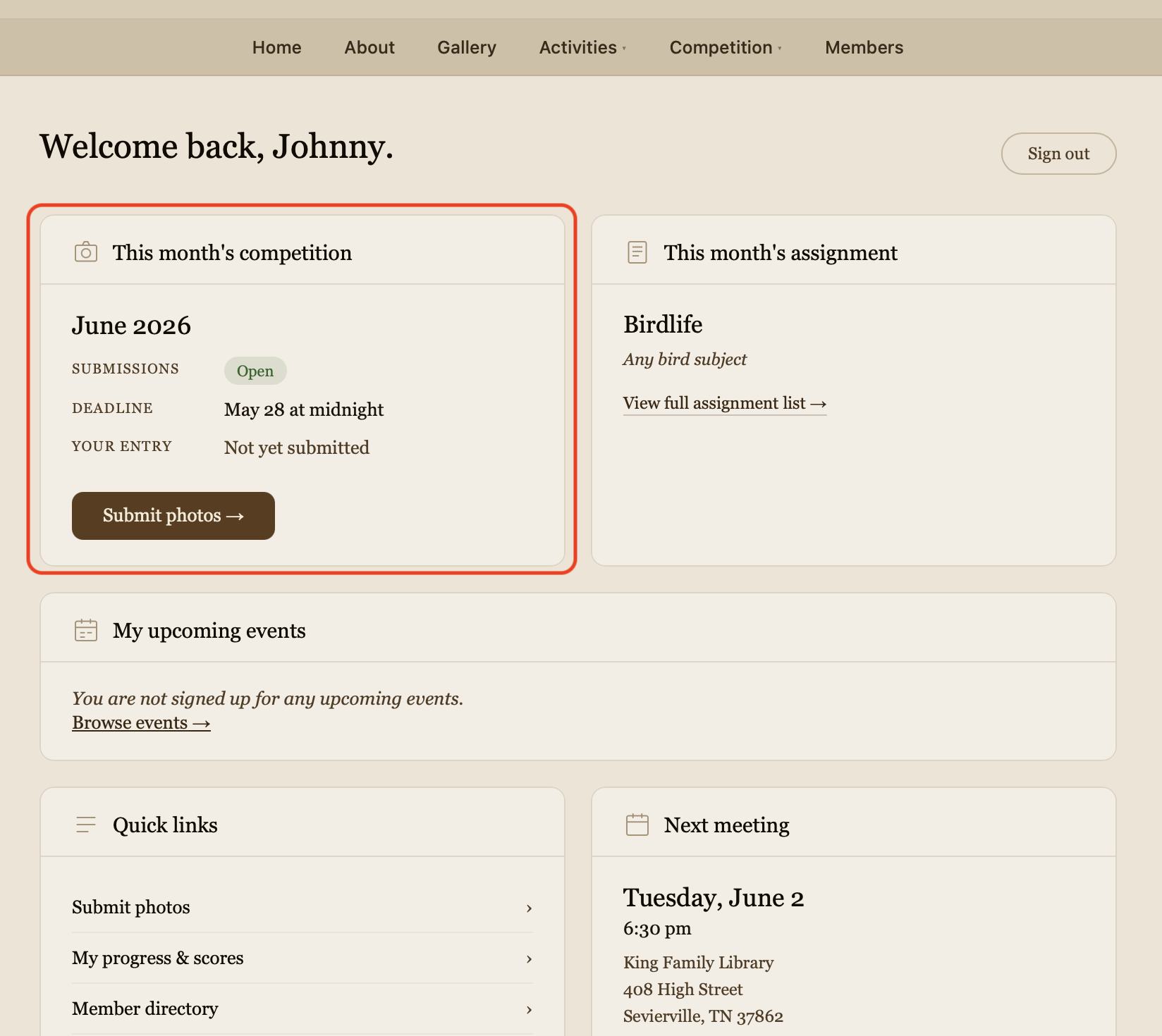
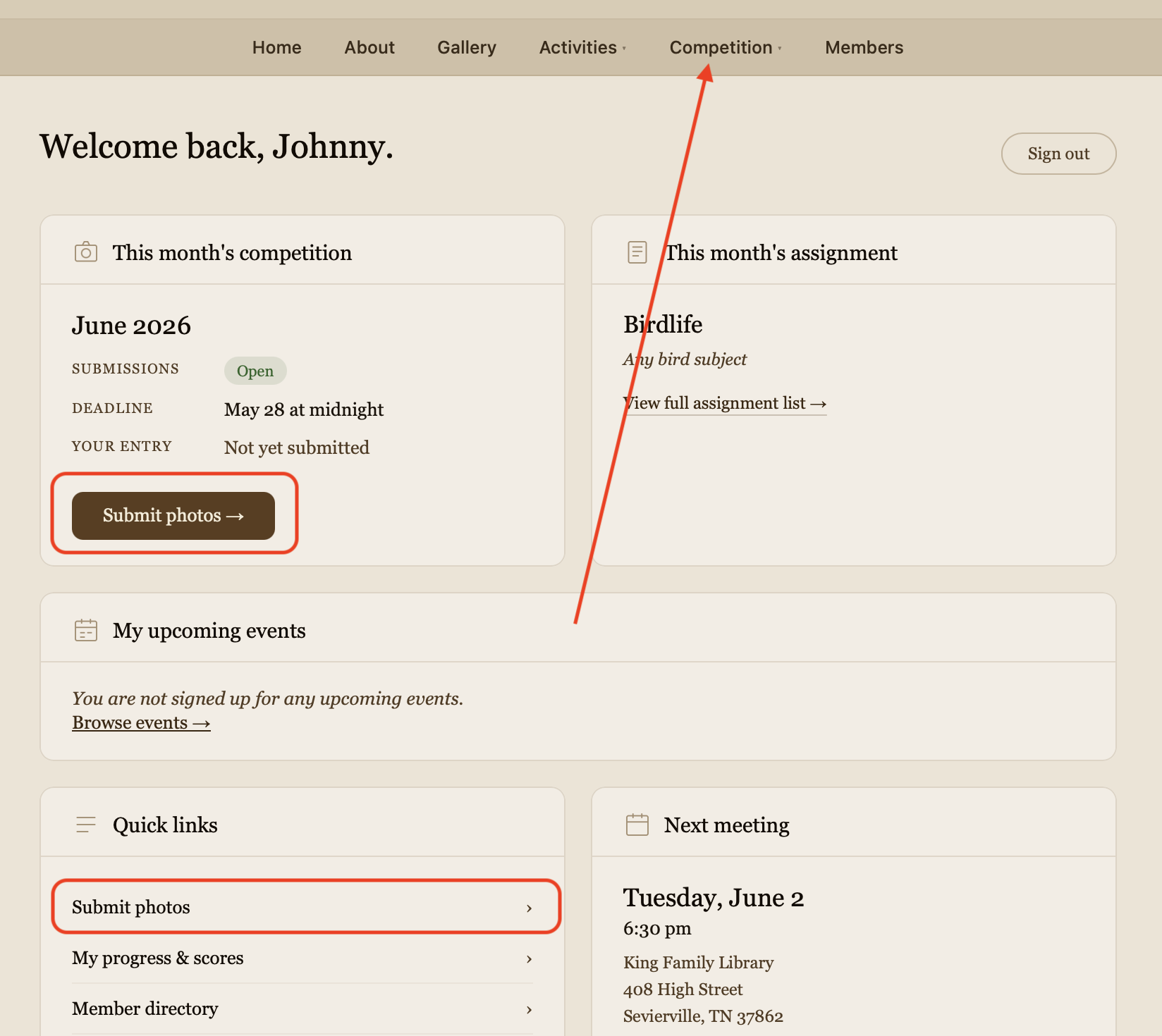
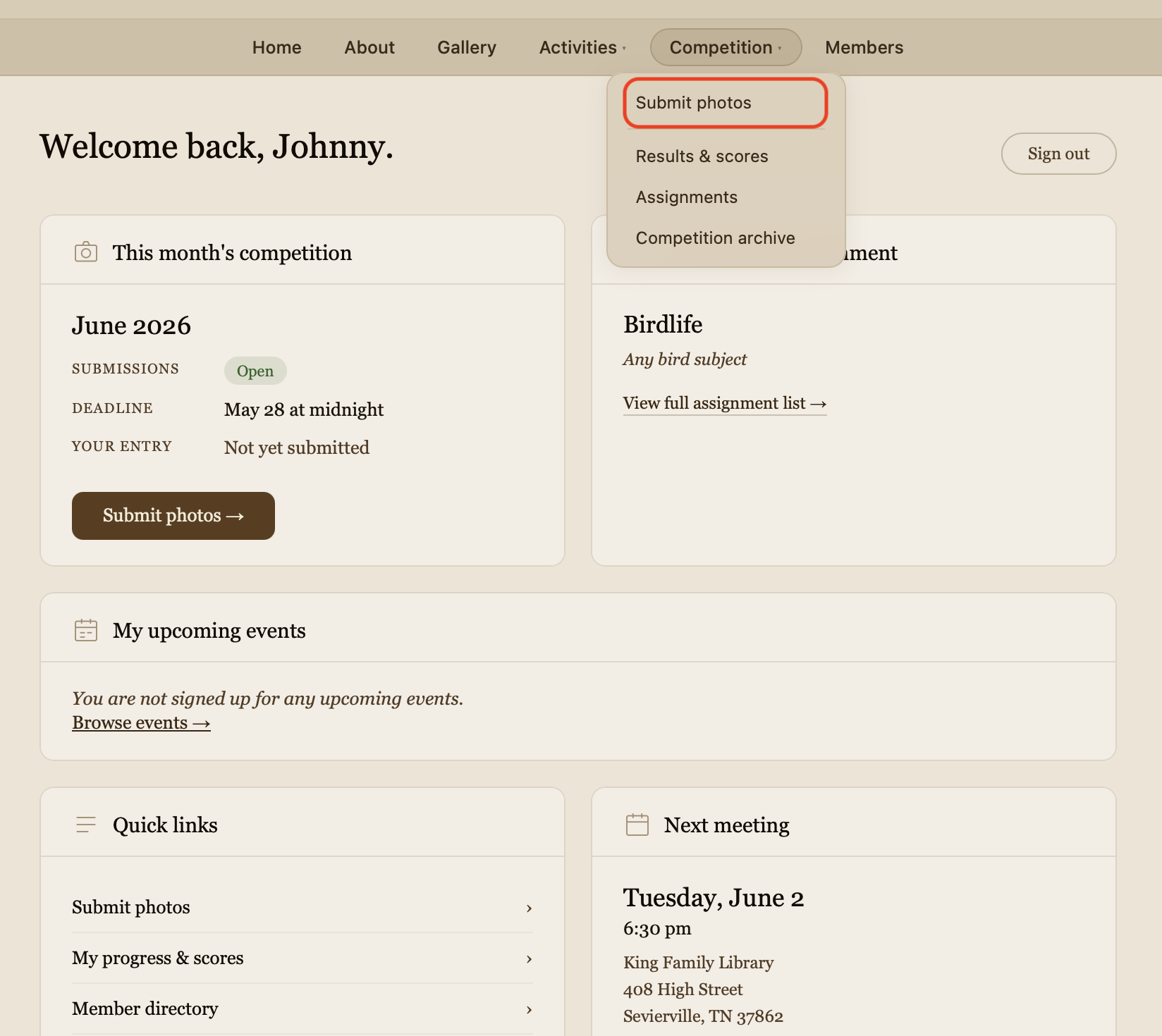
Three places you can add photos
They all land on the same page, so it doesn't matter which way you go in
- 1The Competition CardClick on the Submit photos button
- 2The Quick Links CardClick the Submit photos link
- 3The Competition menu on the nav barThis will open a drop down with a link to the submit photos page
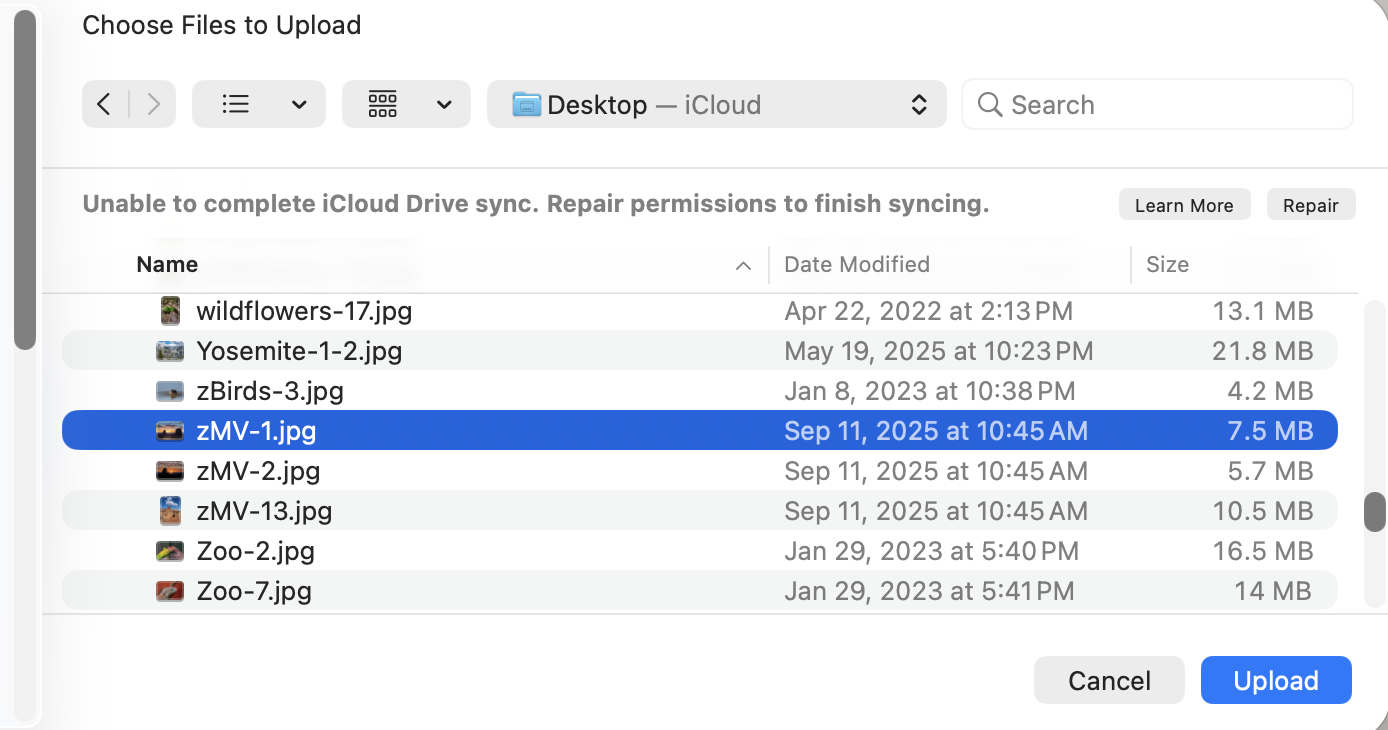
First choose your file
Click the Choose File button to open a file select dialog
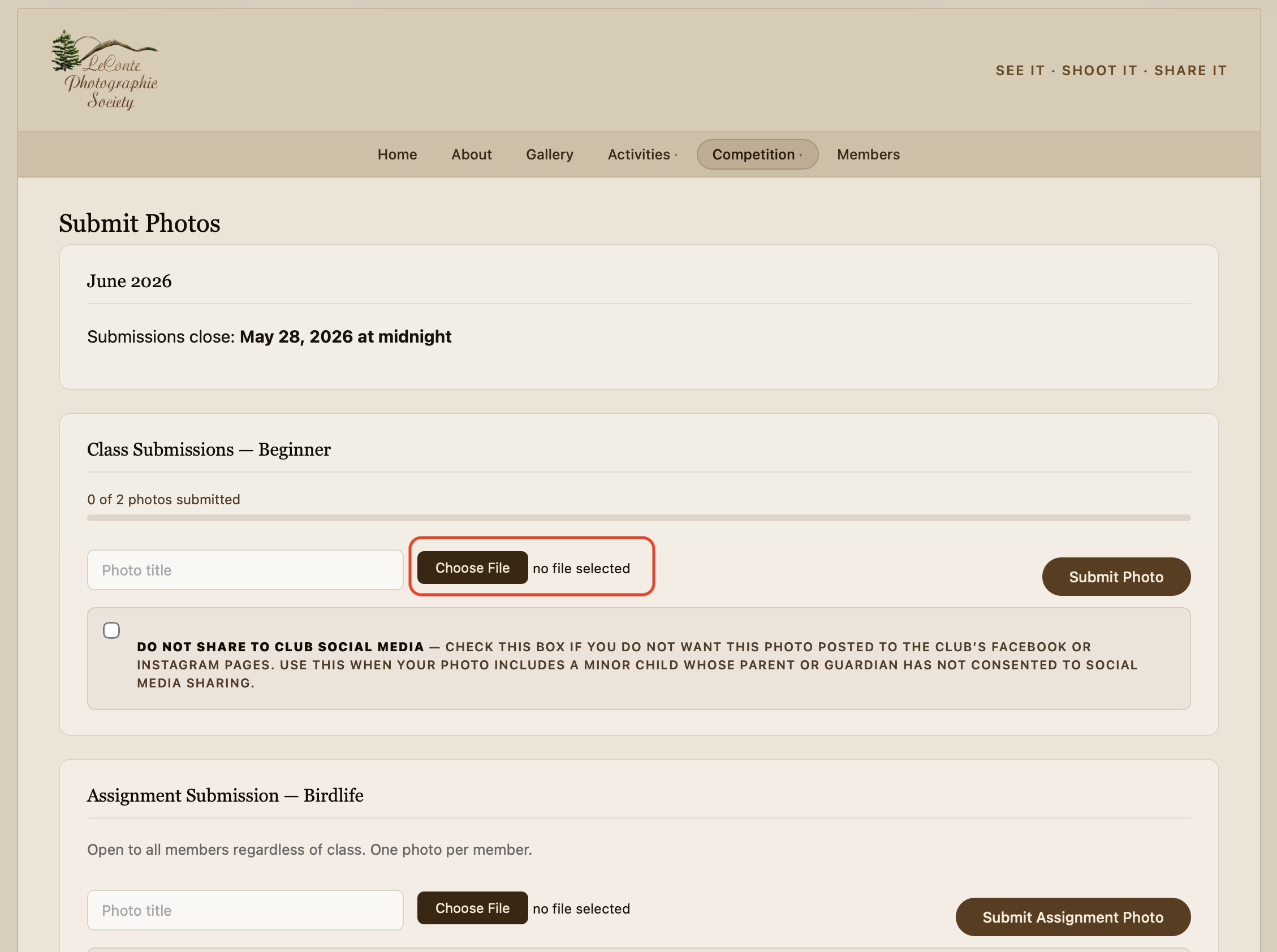
Navigate to your file
Choose the file you want to submit then click the Upload button
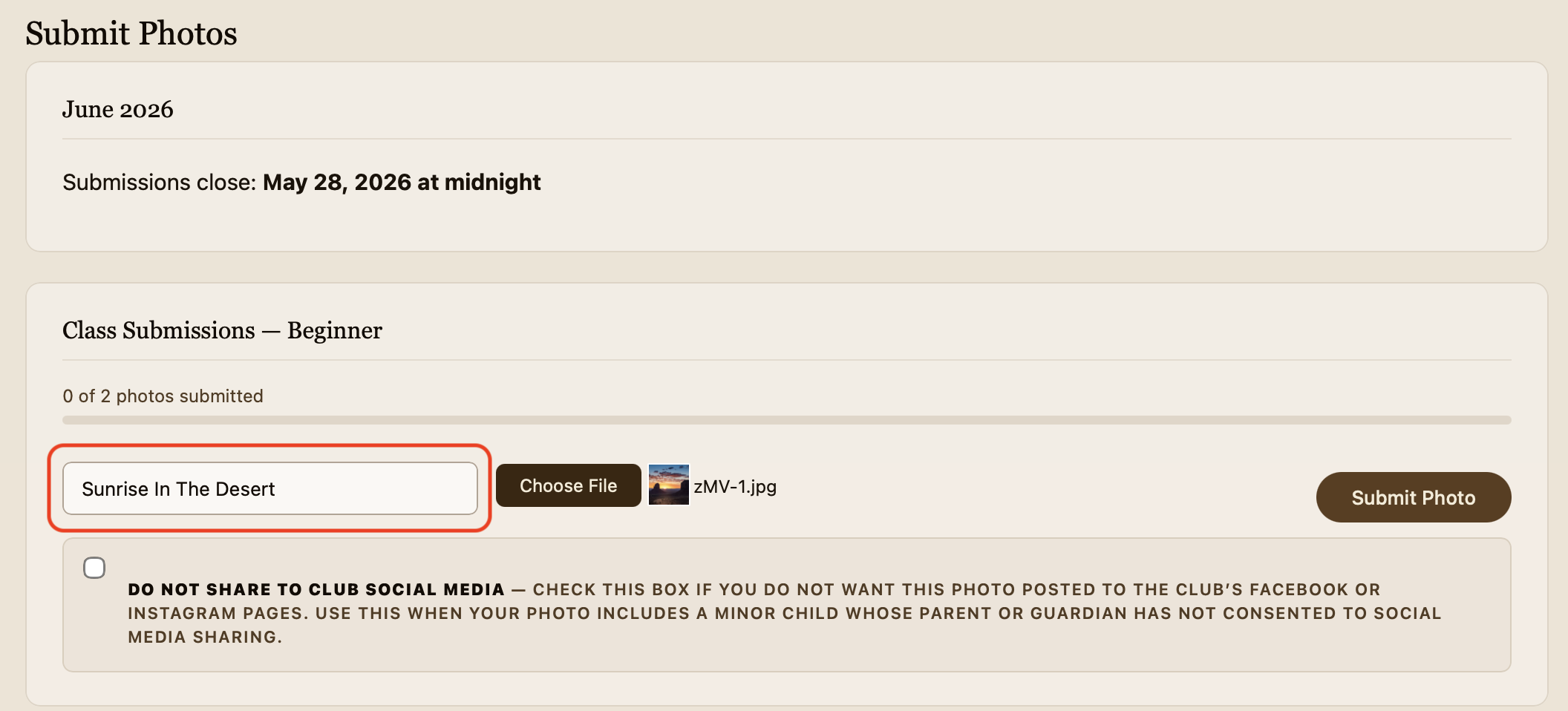
Enter the name of your photograph
This is the name that the scorekeeper will announce to the judges as the photo is displayed for judging
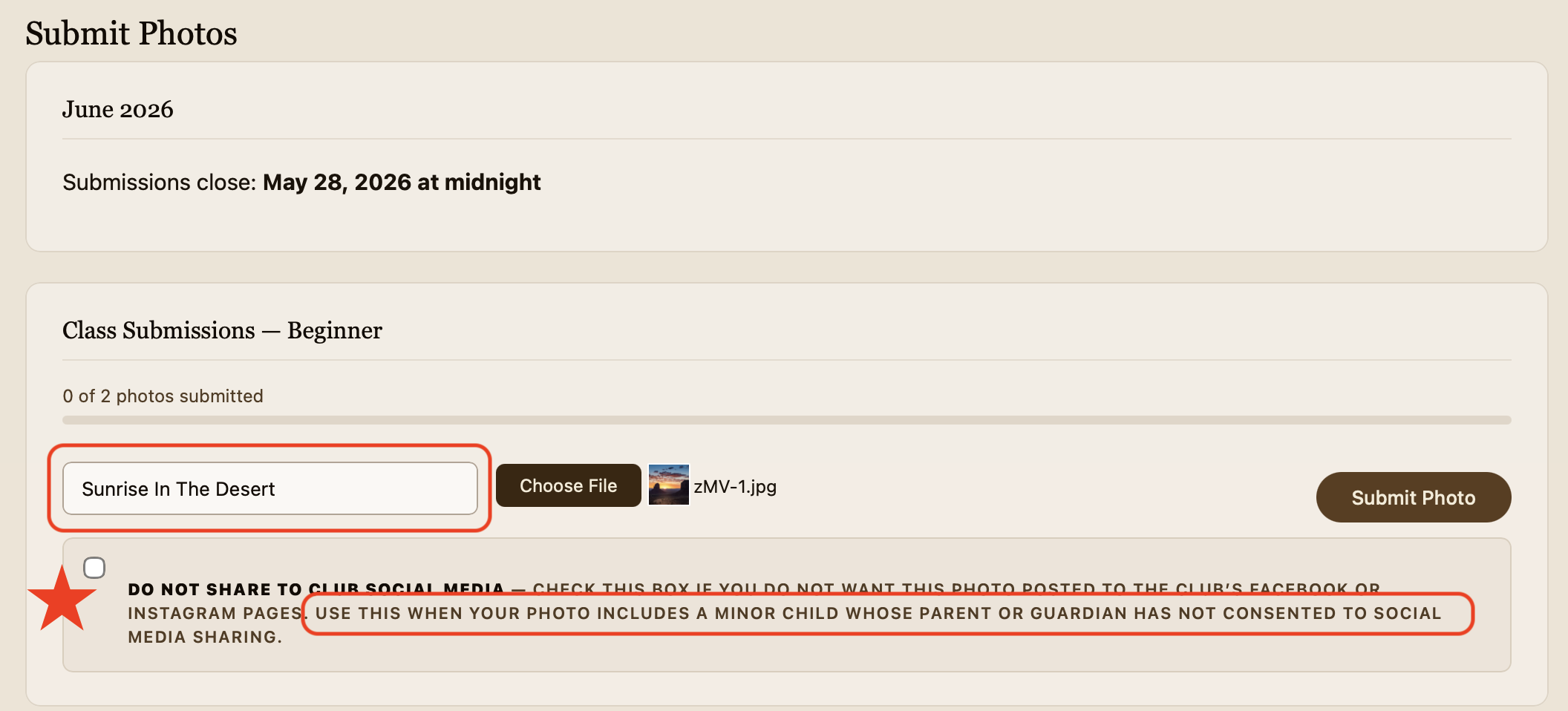
When to check the DO NOT SHARE box
This should only be checked when you are submitting the photo of a minor who's parents don't want the image shared to the club social media pages.
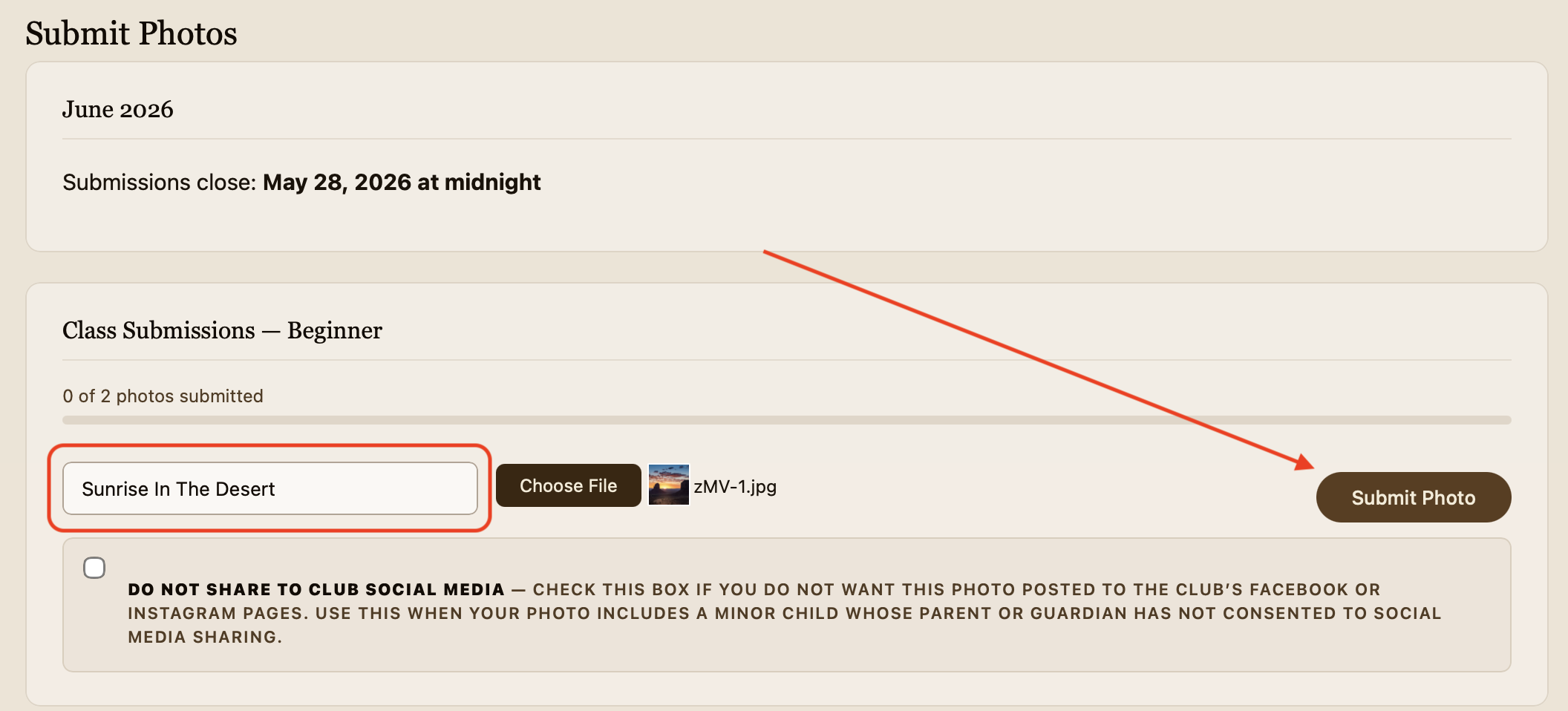
Now click the Submit Photo button
The form will upload the photo to the website for entry in this months competition
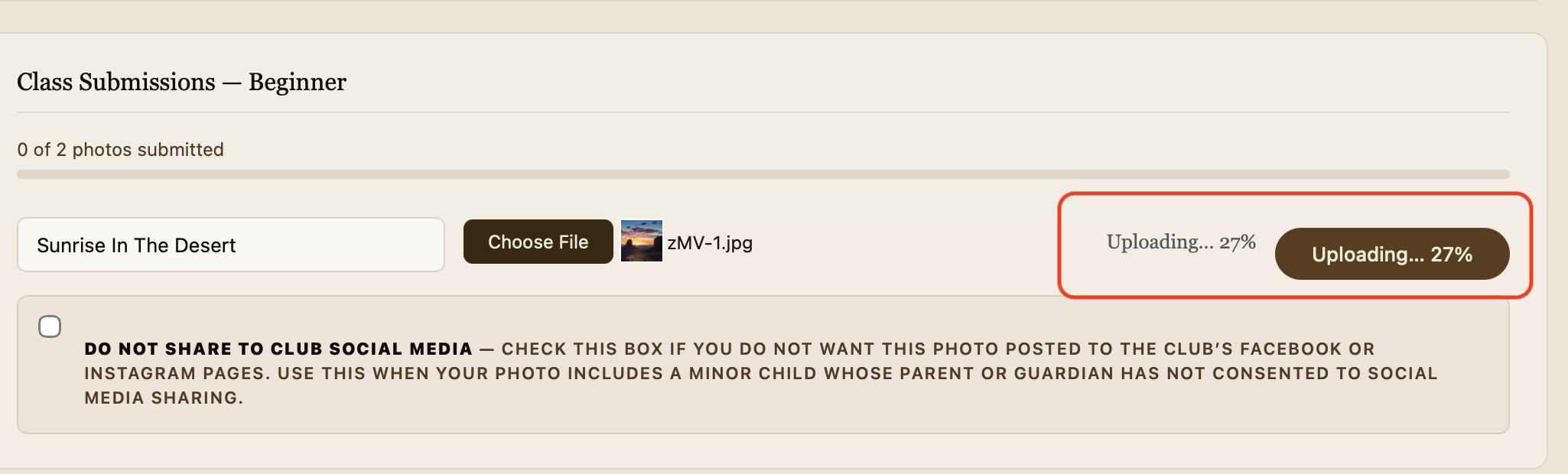
The form displays upload progress
This is good if you have a very slow internet connection (like me)
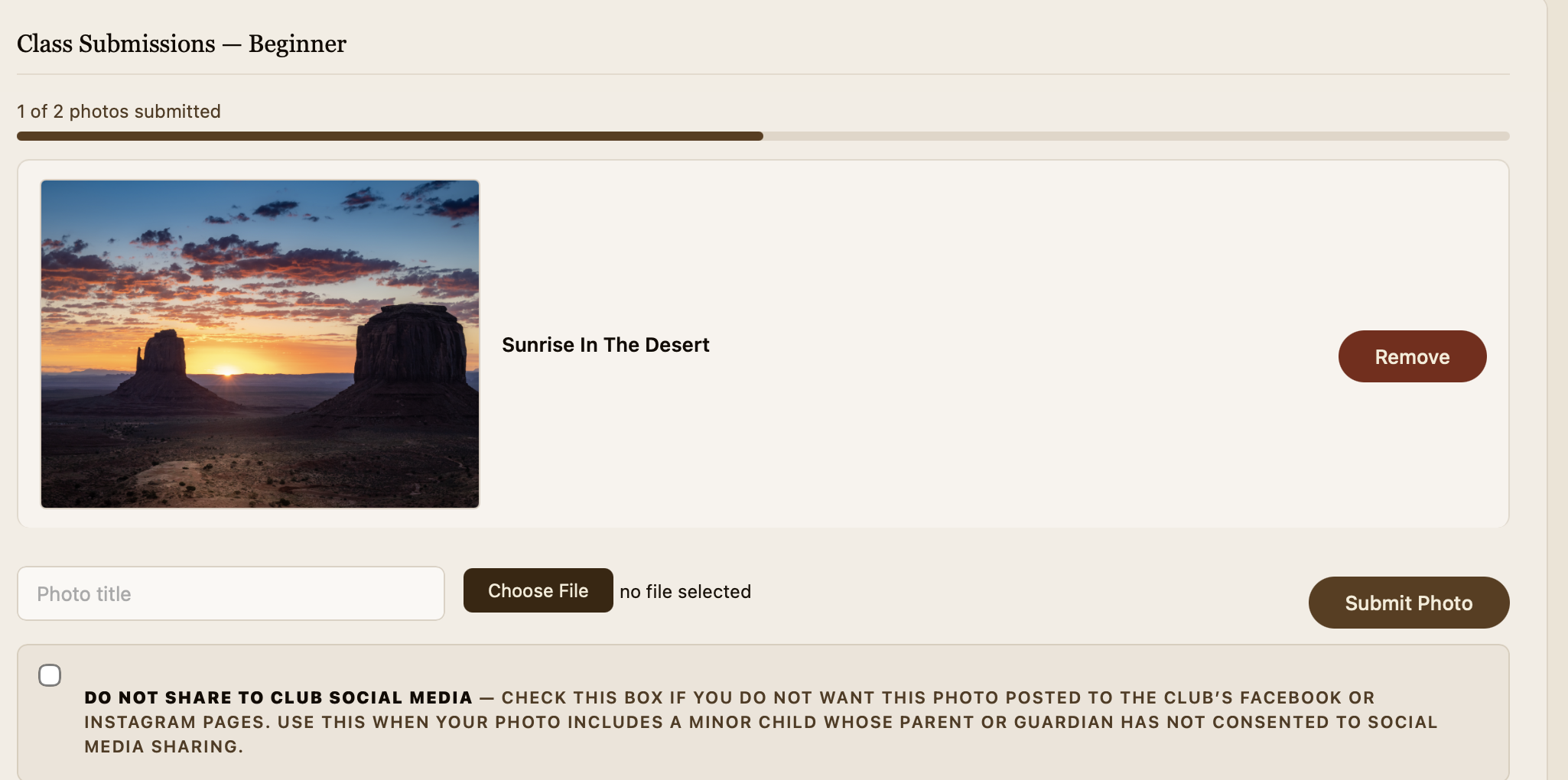
Now the page will show your photo and title
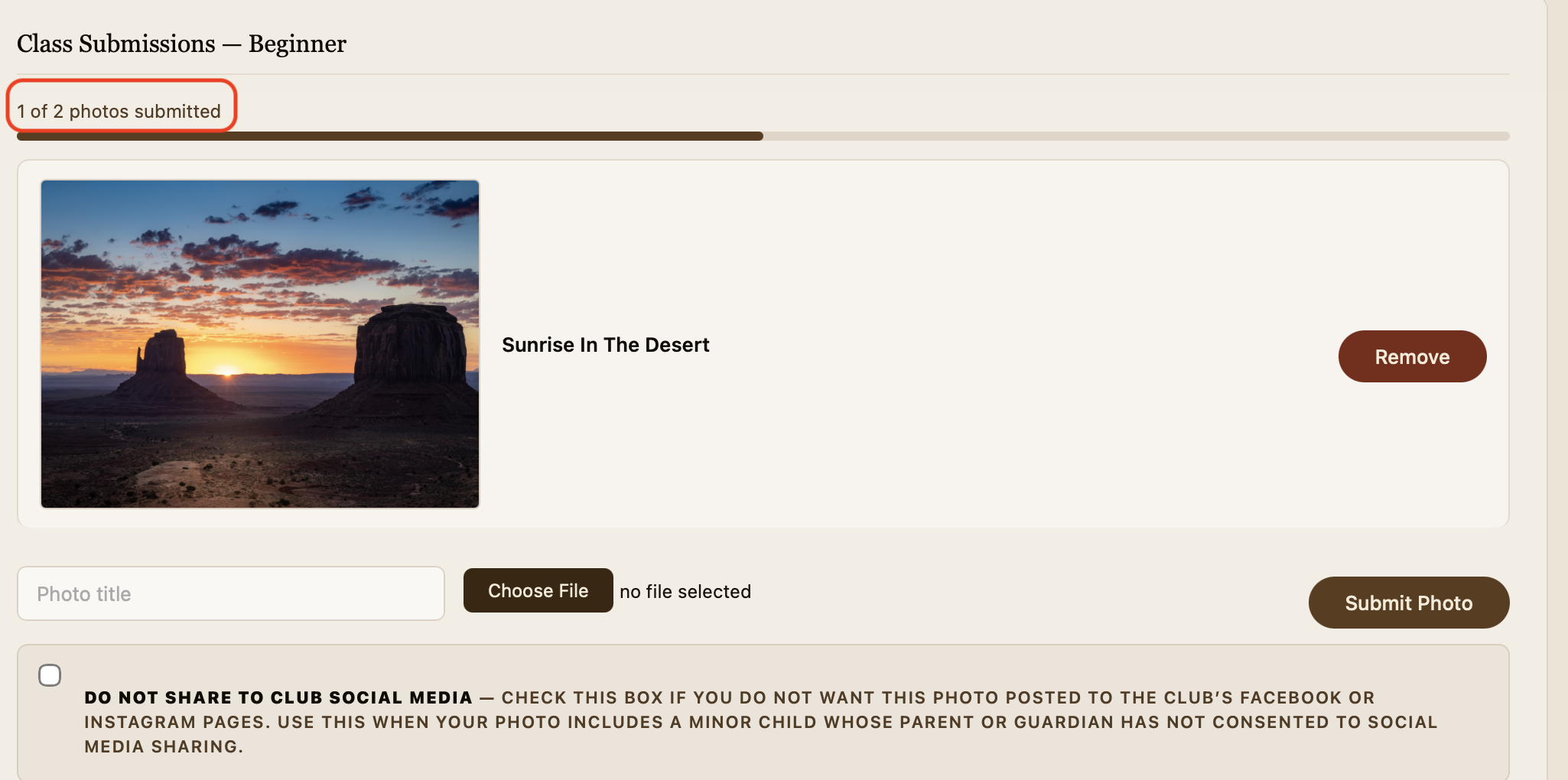
The page will show you how many photos you have uploaded and how many you CAN upload
Just below the Class Submissions card is the Assignment card where you upload your Assignment submission in the same way.
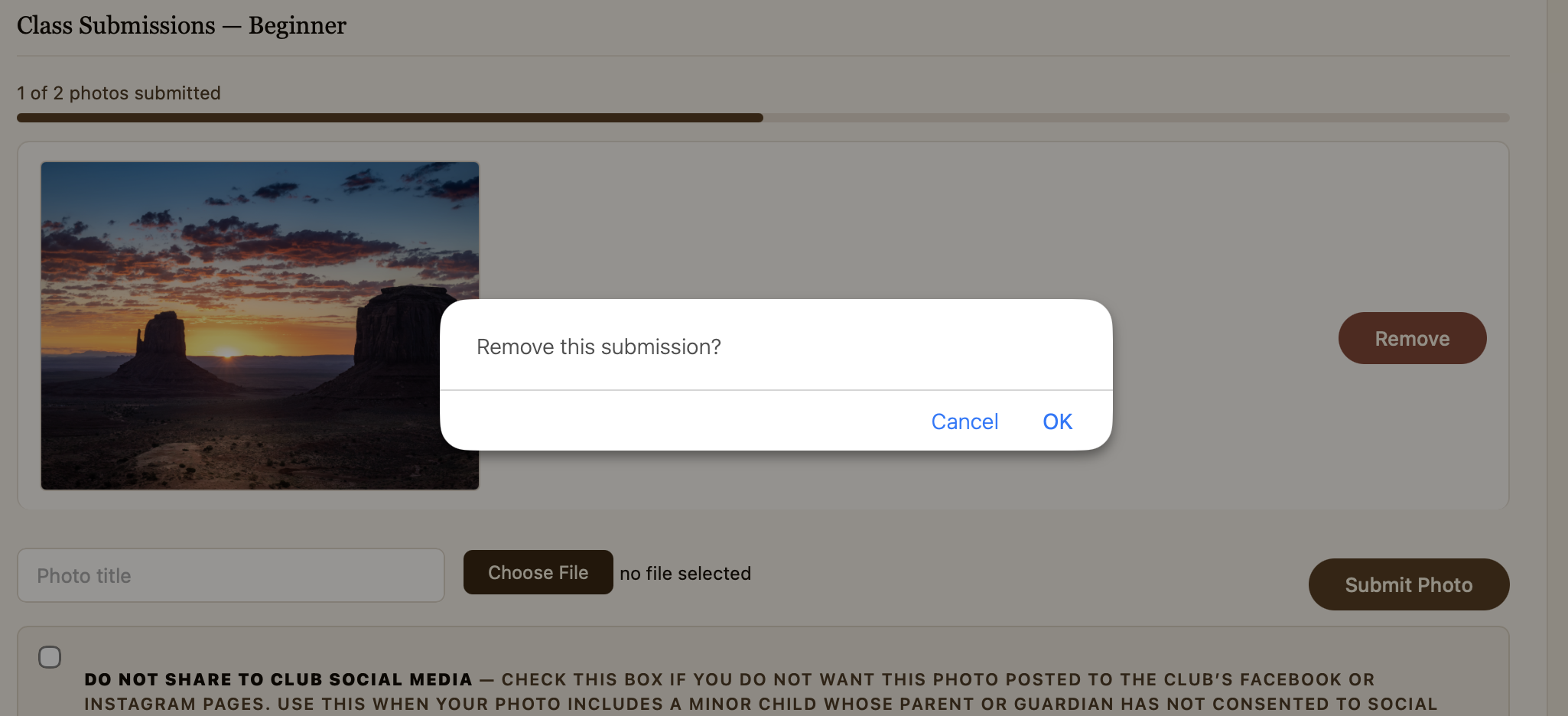
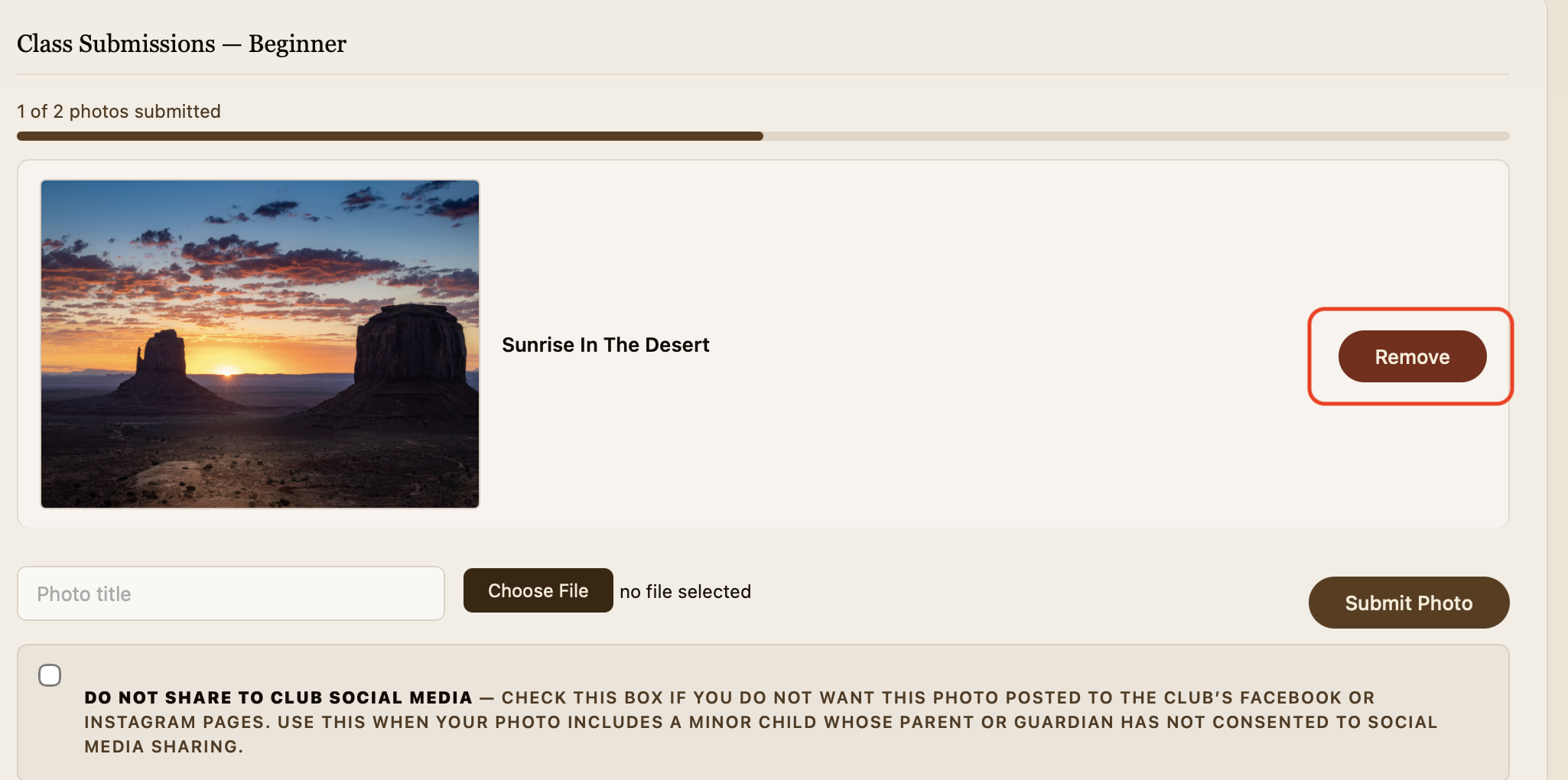
If you uploaded the wrong photo click the Remove button
This will load a confirmation dialog that allows you to remove the submission and opens a spot for a different submission.
Click OK and your photo will be removed from the competition
This confirmation dialog removes the submission and opens a spot for a different submission.